
After registering and verifying your email address, you'll complete the Company Setup wizard before accessing the platform.
The setup consists of three required steps that establish your company's default configuration. While most settings can be updated later from the Company page, completing the initial setup is required before using the system.
Before You Begin
-
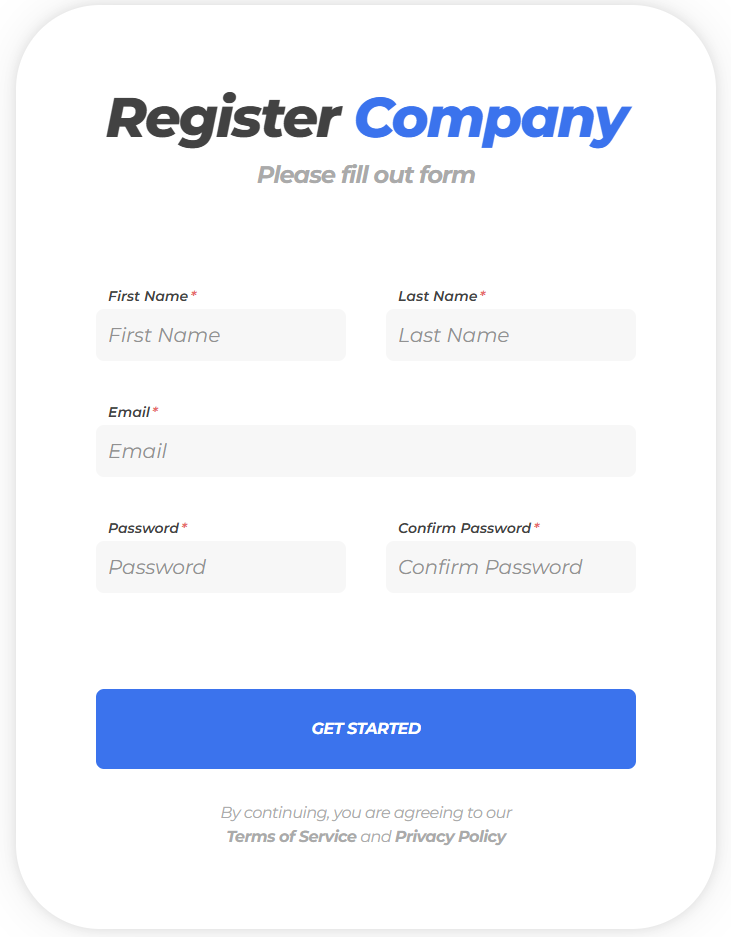
Register your company account.
-
Verify your email address using the verification link sent to your inbox.
-
Log in to Carrier Rute.
The Company Setup wizard opens automatically after your first login.
Step 1 – Company Information
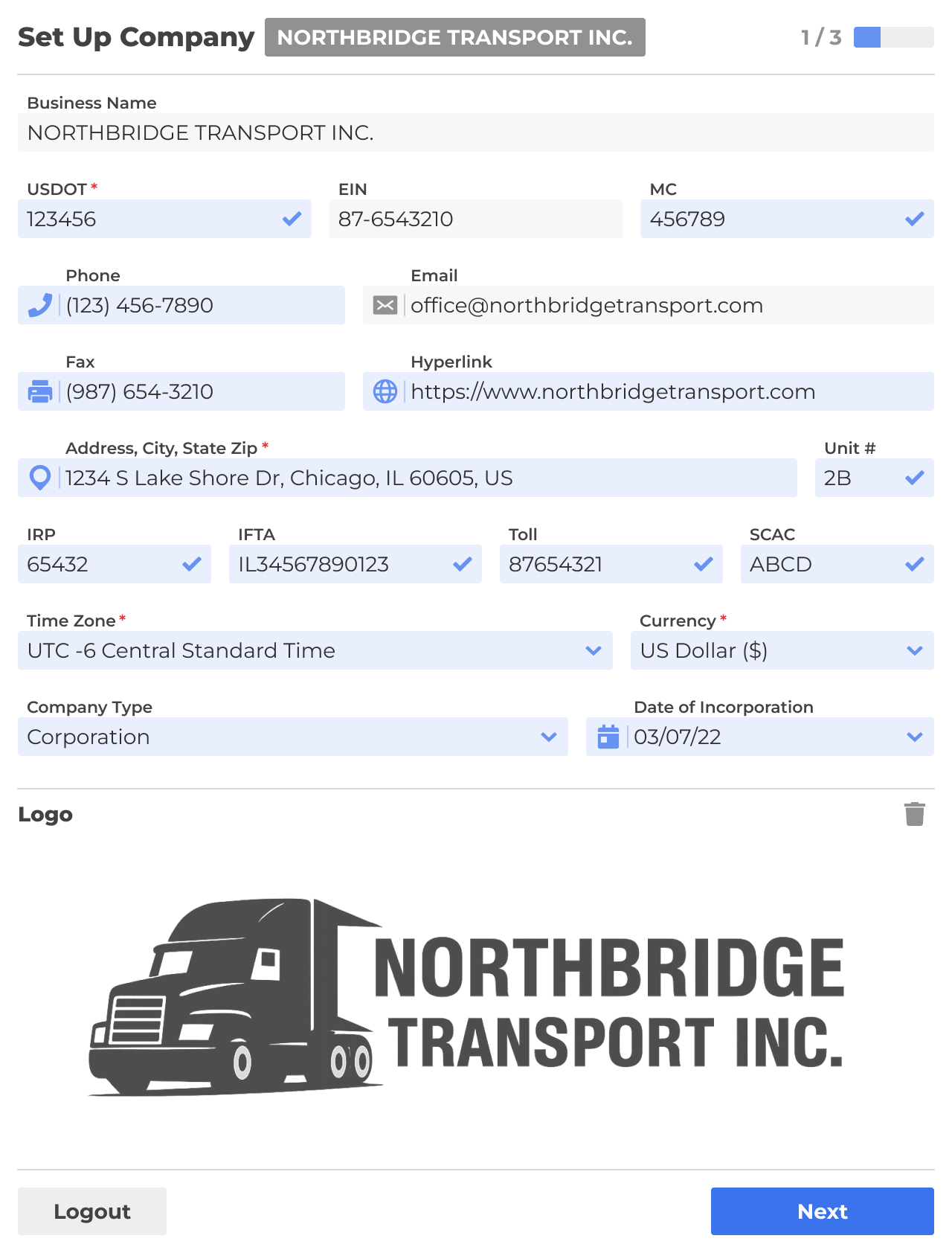
Enter your company's basic information, including the required fields:
-
Business Name
-
USDOT Number
-
EIN
-
Company Address
-
Time Zone
-
Currency
Once all required fields are completed, click Next.
Note: The remaining fields on this step are optional and can be completed later.
Step 2 – Company Defaults
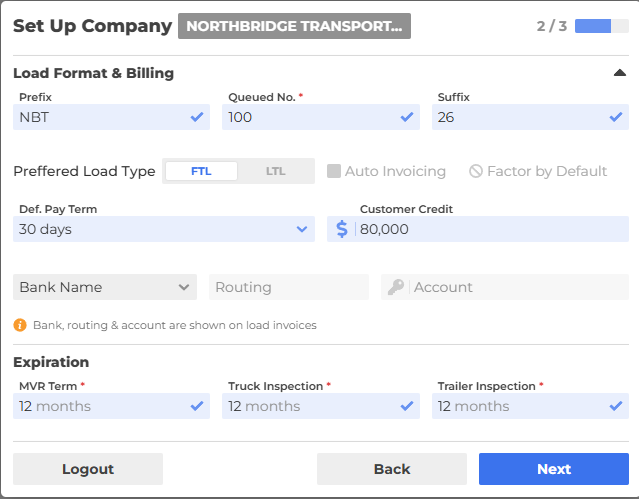
This step contains your company's default operational settings.
The fields are preconfigured with recommended values. If the default configuration meets your needs, simply click Next.
Step 3 – Driver & Owner Defaults
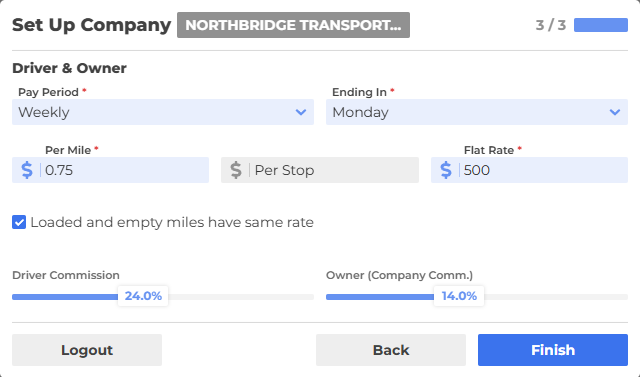
Configure your company's default payroll settings for newly created Drivers and Owners.
These values are prefilled and can be adjusted if needed before clicking Finish.
Tips
Verify Your Company Information
The Business Name and USDOT Number should exactly match the information registered with FMCSA/SAFER.
Carrier Rute uses this information to verify your company and synchronize company data from FMCSA.
Choose the Correct Time Zone
Your company's Time Zone is one of the most important settings in the platform.
It is used throughout Carrier Rute to display operational times, including:
-
Pickup appointments
-
Delivery appointments
-
Driver arrival status
-
Fuel Stops
-
Repair Shops
-
Other time-based activities
Selecting the correct time zone ensures that dates and times are displayed consistently across the platform.
Default Company Settings
The settings configured during Steps 2 and 3 become the default values for your company.
Although they are preconfigured, you can modify them to better match your business before completing the setup.
Company Settings Can Be Updated Later
After completing the setup wizard, you can reopen and update your company settings at any time from the Company page.
Exception: The following fields cannot be changed after the company has been created:
Company Name
EIN
Email Address
Complete All Three Steps
The Company Setup wizard must be completed before you can begin using Carrier Rute.
All three steps are required, even if you keep the default values for Steps 2 and 3.